Set up organizational calendars
Choose the organization’s shared calendar and give users a personal preference.
Prepare your requirements
Identify your Jira version and the apps used for dates, reporting and time tracking. Include required fields and screens in your request so the appropriate package and settings can be selected.
Install and activate the app
A Jira administrator installs the appropriate package. The picker and converter are part of the same product. Disable overlapping legacy date apps before activation to avoid two pickers appearing on one field.
Set the organization’s calendar
Open PMAgile Date Picker from administration. Choose the default and allowed calendars, save the settings and enable calendars. Users who select Follow organization use this default.
Configure personal preferences
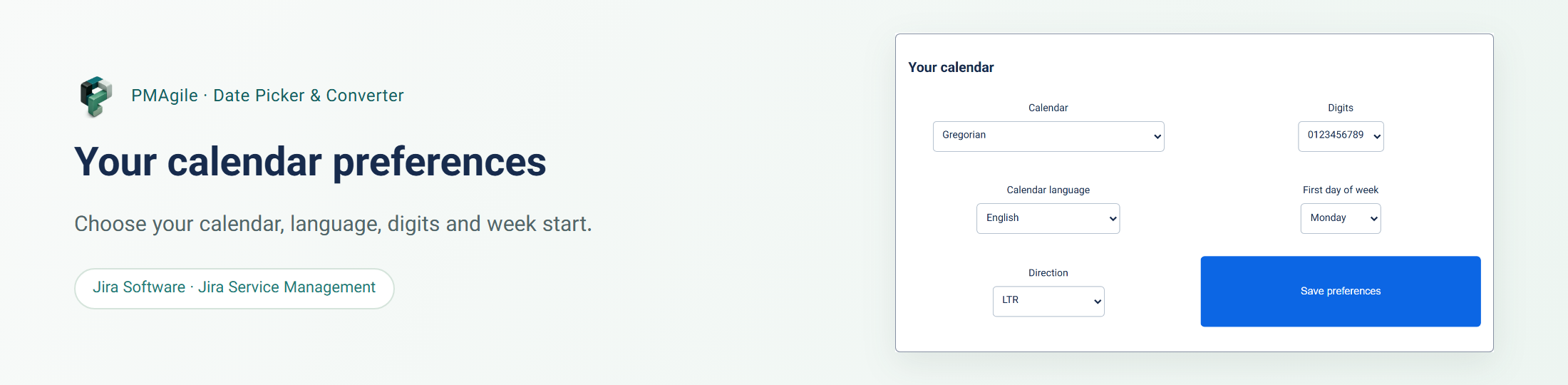
The image shows the personal calendar section. From Calendar preferences, users can choose an allowed calendar, month-name language, digits, first day of week and direction. Follow organization also applies future changes to the organization default.
Reload your work screens
After saving, reload Jira pages. Dates use the user’s effective calendar while retaining Jira’s original values. The image shows converted activity dates. Use product support for help with a particular screen or field.