Illustrated guide to selecting and reading dates
Choose a personal calendar, enter dates and times, and read Gregorian equivalents.
1. Choose your calendar
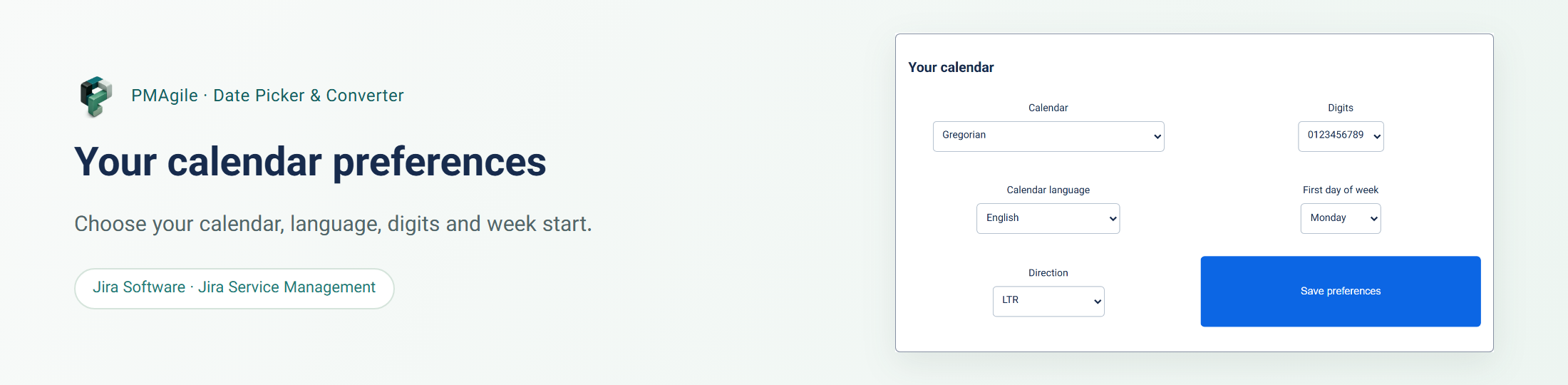
Open Calendar preferences from the user menu or portal profile. Follow the organization or choose an allowed calendar as shown. Month-name language, digits, first day of week and direction can be set separately from the calendar. Save your preferences.
2. Select a Jalali date
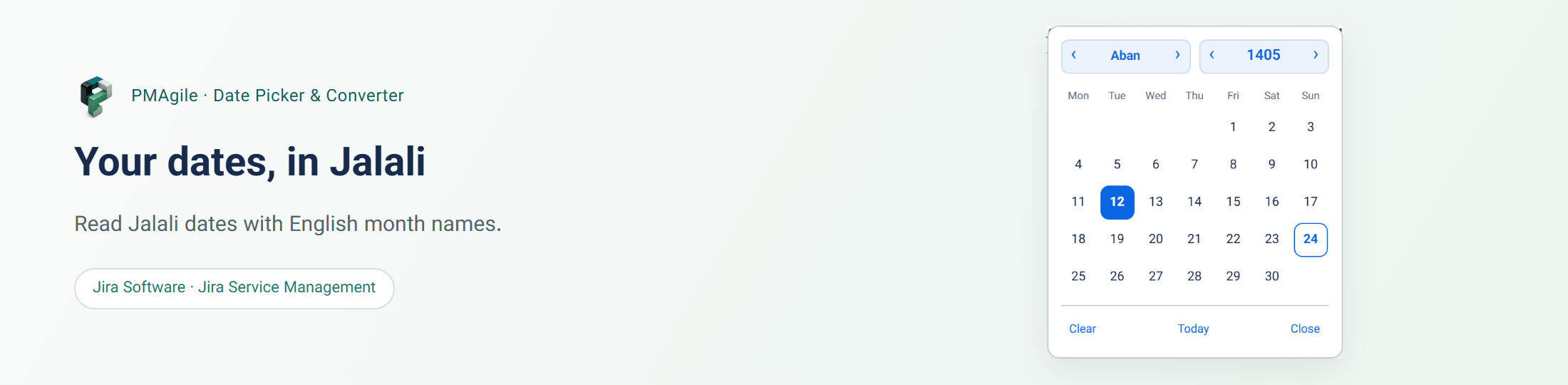
Click a supported date field to open the picker. Navigate with the month and year controls and select a day. Manual input must match the calendar and field format. Selecting a day fills the field; save the Jira form as usual too.
3. Use Hijri or Gregorian dates
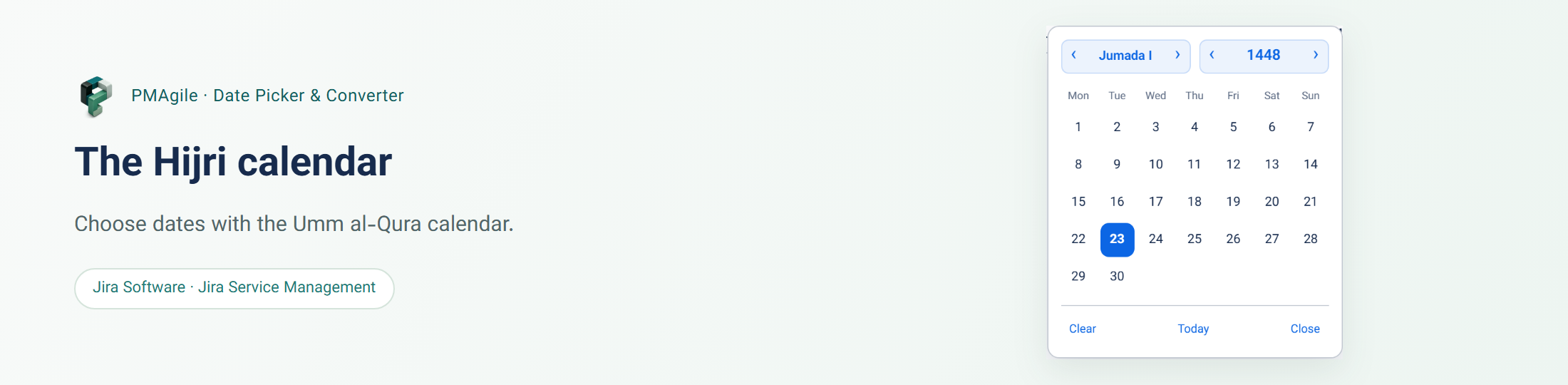
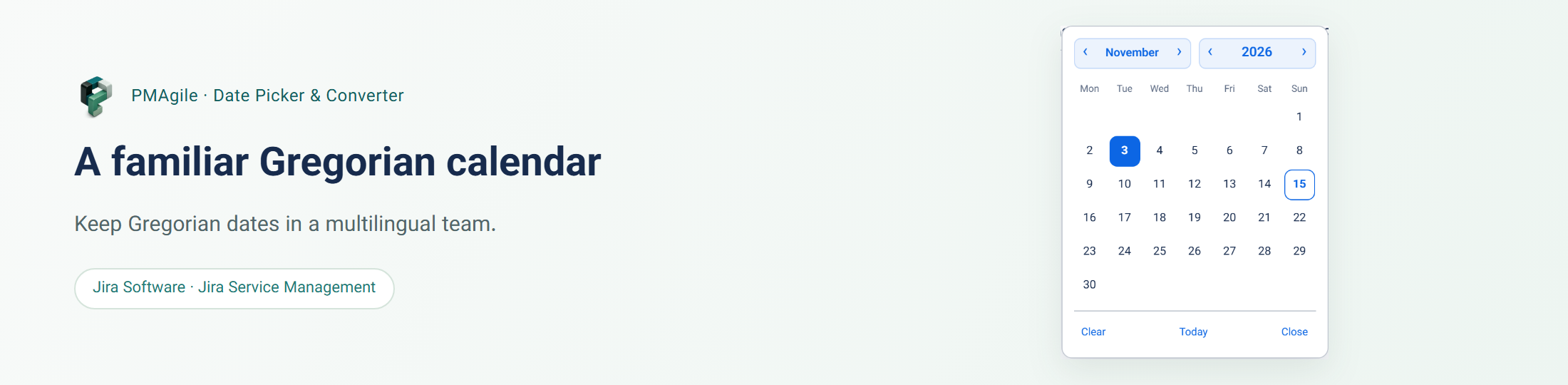
When Umm al-Qura or Gregorian is your effective calendar, the same control opens with that calendar’s months and days. The images show both views. Umm al-Qura is a specific Hijri calendar and may differ from local moon-sighting or official calendars.
4. Apply date and time together
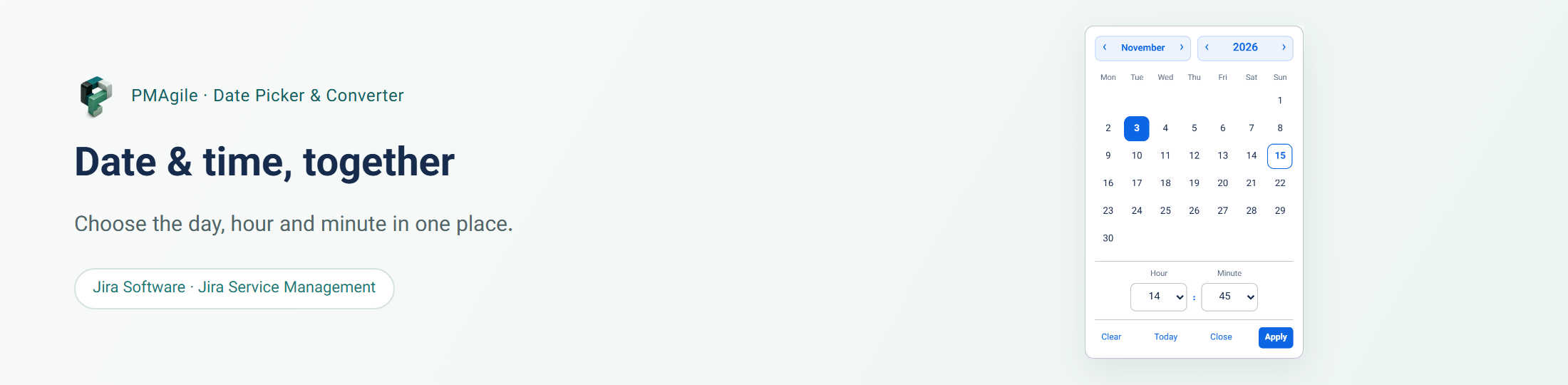
For a date-time field, choose the day, hour and minute, then select Apply. Changes remain a draft until Apply; closing the popup or pressing Escape does not commit them. Save the main form after making your selection.
5. Read converted dates
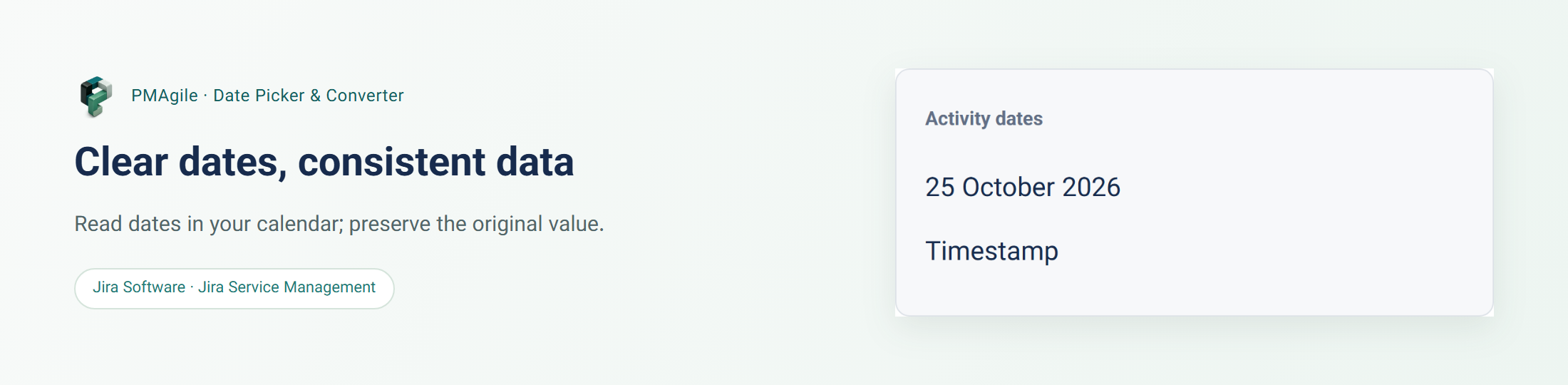
The image shows activity dates in the selected calendar. Hover over a converted date to see its Gregorian equivalent. Jira retains the original date and time; free text in descriptions or comments is not guessed and rewritten.